Create and Manage Groups
A group is a soft colored shape with a label, drawn behind any set of people: the household that shares a home, a stepfamily, a subsystem you want to discuss. Select the people with Ctrl+click (Cmd+click on a Mac), right-click, and choose Create Group.
1Select the people who belong together
A group needs at least two people, so start with a multi-selection.
In the WebGeno web app, click the first person on the canvas. Then hold Ctrl (Cmd on a Mac) and click each of the others. Everyone you add stays highlighted.
2Right-click one of them and choose Create Group
The option appears as soon as two or more people are selected.
Right-click one of the highlighted people. In the Relationships section of the context menu, choose Create Group. The group dialog opens with the people you selected already ticked as members.
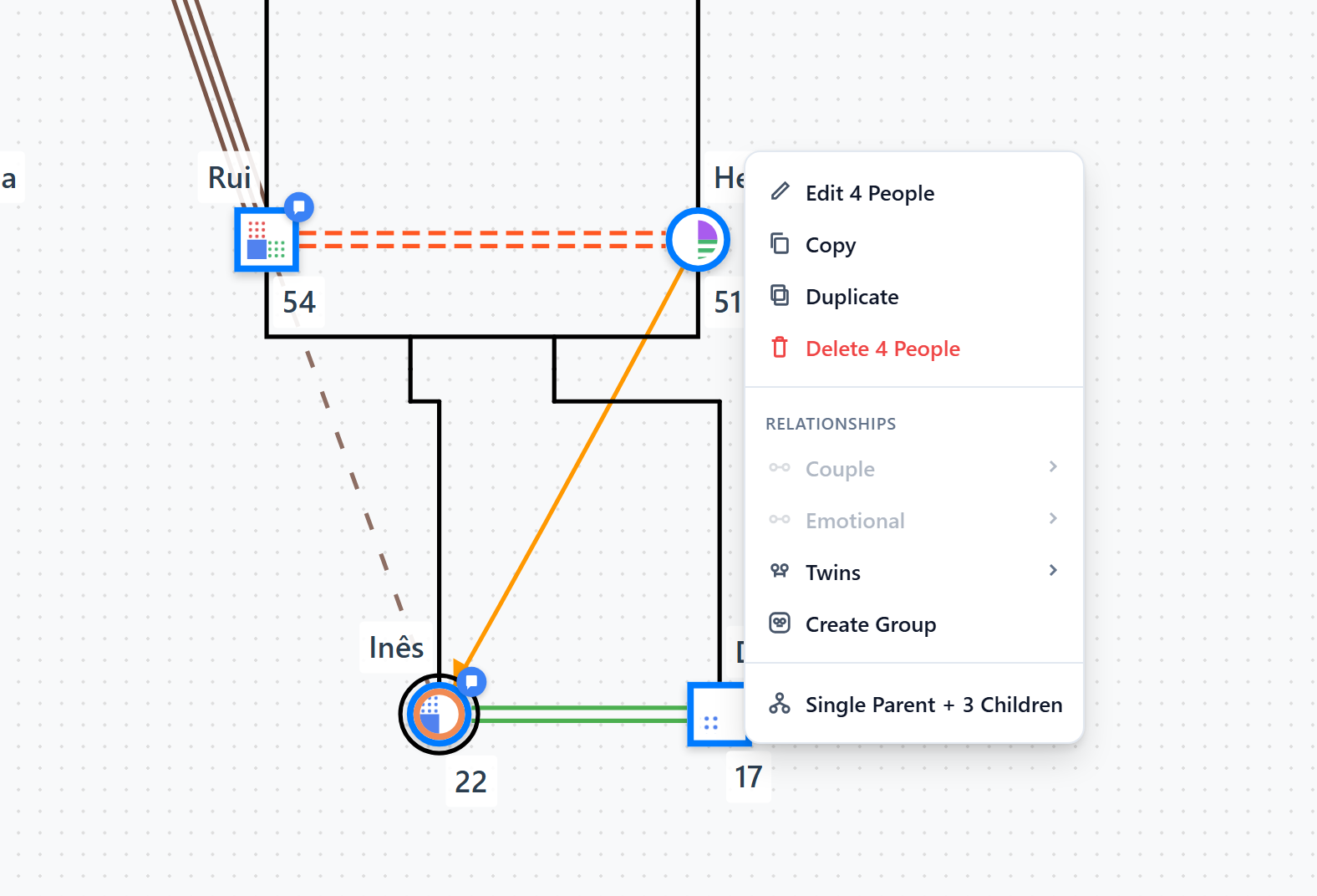
With two or more people selected, Create Group appears under Relationships.
3Name the group and set its look
Everything about the group lives in one dialog.
In the Create Group dialog:
- Group Name: required, for example “Household”. It becomes the label on the shape (under 100 characters).
- Color: pick one of the eight swatches.
- Opacity, Corner Radius and Padding: sliders for how transparent the shape is, how rounded its corners are, and how much room it leaves around its members.
- Members: the checklist of everyone in the genogram. Tick or untick people here; a group needs at least two members.
The Preview shows how the label will look. Click Create Group and the shape appears behind its members.
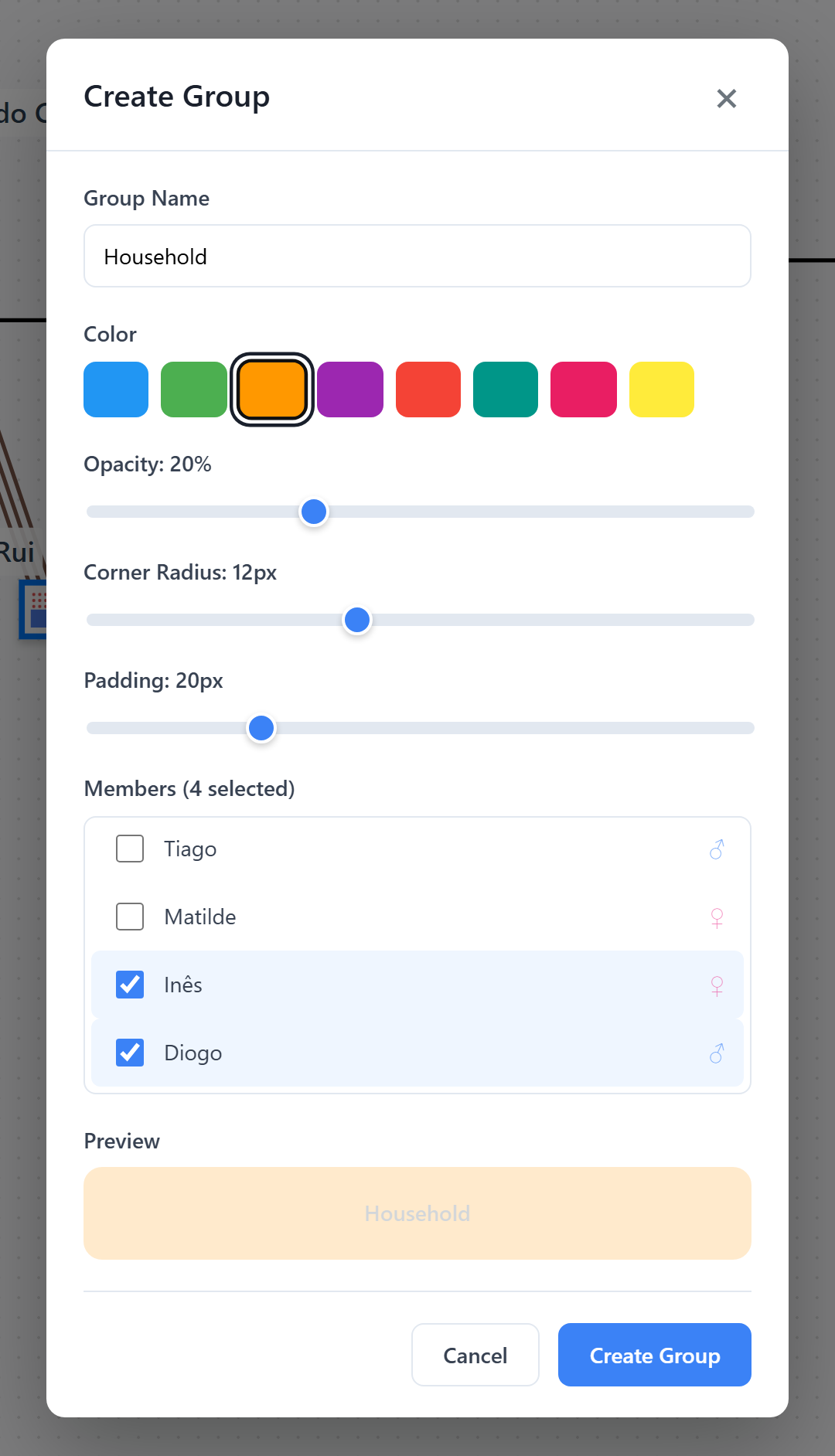
The group dialog: name, color, shape settings and the member checklist.
4Edit, select, or delete the group later
Right-click the group shape for everything else.
Right-click the group shape to open the group menu:
- Edit Group: reopens the dialog to rename it, change its look, or tick and untick members when the household changes.
- Select All Members: selects everyone in the group, replacing the current selection.
- Delete Group: removes the shape.
Frequently asked questions
Why don’t I see Create Group in the menu?
Because fewer than two people are selected. The option only appears with two or more people highlighted. Go back to step 1, Ctrl+click (Cmd+click) the people again, and right-click one of the highlighted people.
Will deleting a group remove the people in it?
No. Delete Group removes only the shape and its label. The people, their relationships and everything recorded about them stay in the genogram.
How do I add or remove someone from an existing group?
Right-click the group shape, choose Edit Group, and tick or untick the person in the Members checklist. A group always needs at least two members.
I selected the wrong people. How do I start over?
Press Esc to clear the selection, or simply click one person without holding Ctrl (Cmd): that selects only them and drops everyone else. Then Ctrl+click (Cmd+click) the others again.
I clicked a group and a new person appeared. Why?
A plain click on a group shape works like a click on empty canvas: it adds a person at that spot. Press Ctrl+Z (Cmd+Z on a Mac) to undo it. To work with the group itself, right-click its shape.
What are groups useful for?
A genogram shows who is related to whom, but not who lives with whom, and after a divorce or a remarriage those are rarely the same. Groups let you mark households and living arrangements, subsystems worth discussing (an alliance, a child pulled into the parental subsystem), or the systems around a household in an ecomap. The built-in ecomap example under File → Example Genograms is built from groups.