Create a Relationship Between Two People
Couple and emotional relationships always connect two people, so WebGeno needs both of them selected before it can draw the line. The whole trick is in the selection: click the first person, Ctrl+click (Cmd+click on a Mac) the second, then right-click and pick the relationship.
1Click the first person
A plain click selects one person and clears anything selected before.
In the WebGeno web app, click the first person of the relationship on the canvas. They appear highlighted.
2Ctrl+click (Cmd+click) the second person
Holding the key adds the second person to the selection instead of replacing it.
Hold Ctrl (Cmd on a Mac) and click the second person. Both people should now appear highlighted at the same time.
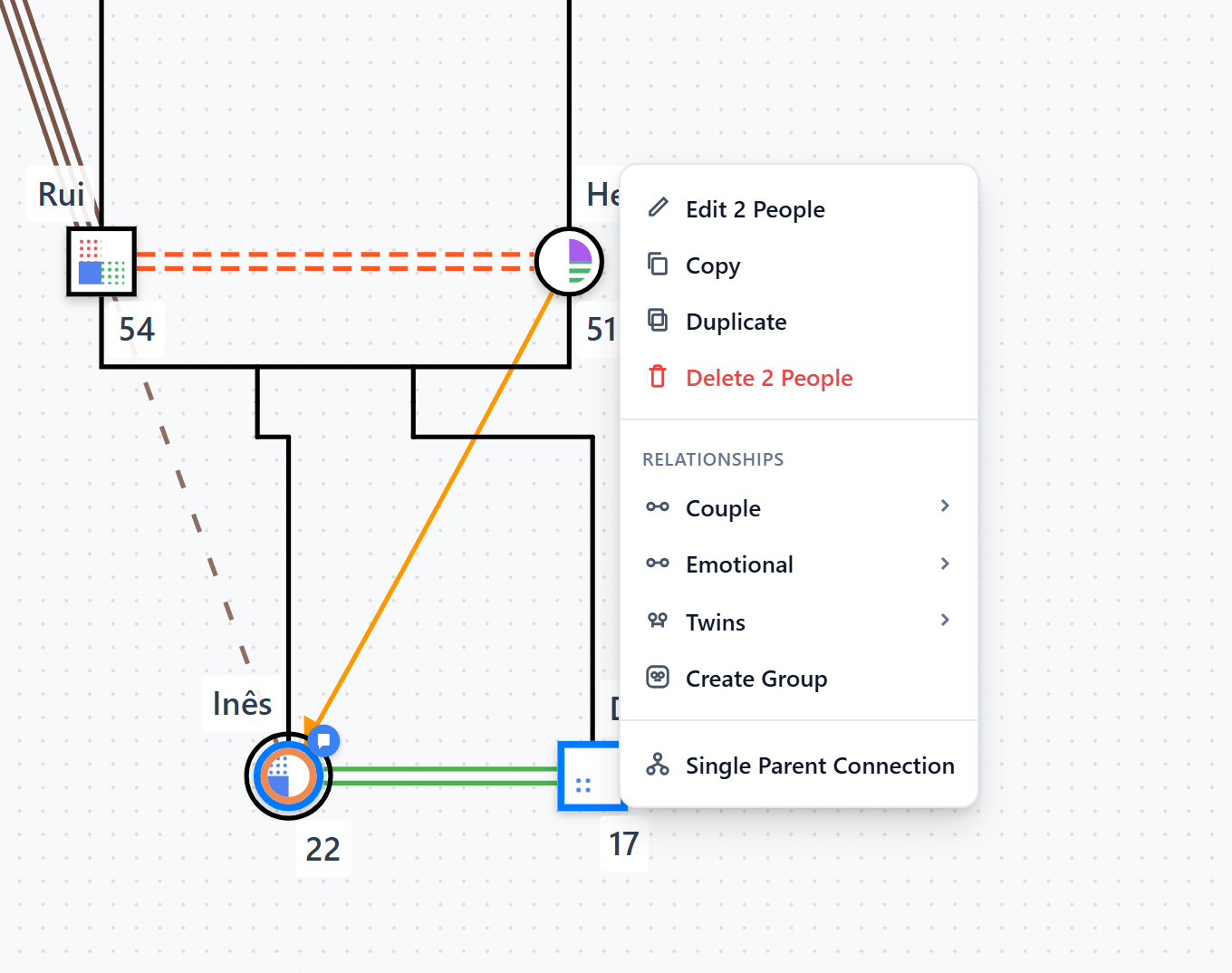
Both people highlighted: the Couple and Emotional options are now available.
3Right-click one of the highlighted people
The context menu adapts to what is selected.
Right-click either of the two highlighted people. The context menu opens with a Relationships section containing Couple and Emotional.
4Choose a couple or emotional relationship
Open the submenu and pick the type; the line is drawn straight away.
Open one of the two submenus:
- Couple: marriage, engagement, love affair, common-law, and their modifiers such as separation or divorce.
- Emotional: the interactional patterns between two people, such as close, hostile, cutoff, or abusive.
Pick the type you want. The relationship line appears automatically between the two people. To change it later, double-click the line to edit its properties.
Frequently asked questions
Why are Couple and Emotional greyed out?
Because you don’t have exactly two people selected. Both options are only enabled with two people highlighted: with one person, or with three or more, they stay disabled. Couple is also disabled if an existing couple relationship line is part of the selection. Go back to step 1 and make sure only the two people are highlighted.
I selected the wrong people. How do I start over?
Press Esc to clear the selection, or simply click one person without holding Ctrl (Cmd): that selects only them and drops everyone else. Then Ctrl+click (Cmd+click) the second person again.
What’s the difference between a couple and an emotional relationship?
A couple relationship records the bond between two partners (marriage, engagement, love affair, common-law) and its status, such as separation or divorce. An emotional relationship describes the quality of the interaction between any two people (close, hostile, cutoff, abusive, and more), following the interactional patterns of McGoldrick’s genogram notation.