Add a Custom Health Condition
WebGeno ships with 64 built-in health conditions, but no default list can cover every diagnosis you work with. When something is missing (chronic pain, for example), create it as a custom condition: it gets its own color, pattern, and position, and behaves exactly like a built-in one, legend included.
Note: the walkthrough below uses PTSD as its example. PTSD, OCD, and eating disorders became built-in conditions in v1.59, but the steps are identical for any diagnosis you need. Professional users can also export their custom conditions as a shareable library file and import it into other genograms (Settings > Health Conditions > Export/Import Library).
1Open the Health Conditions tab
Custom conditions are created from the same place you assign them: a person’s edit dialog.
In the WebGeno web app, double-click a person on the canvas to open their edit dialog, then switch to the Health Conditions tab. At the top of the tab, next to the explanatory text, you’ll find the + Add Custom Condition button.
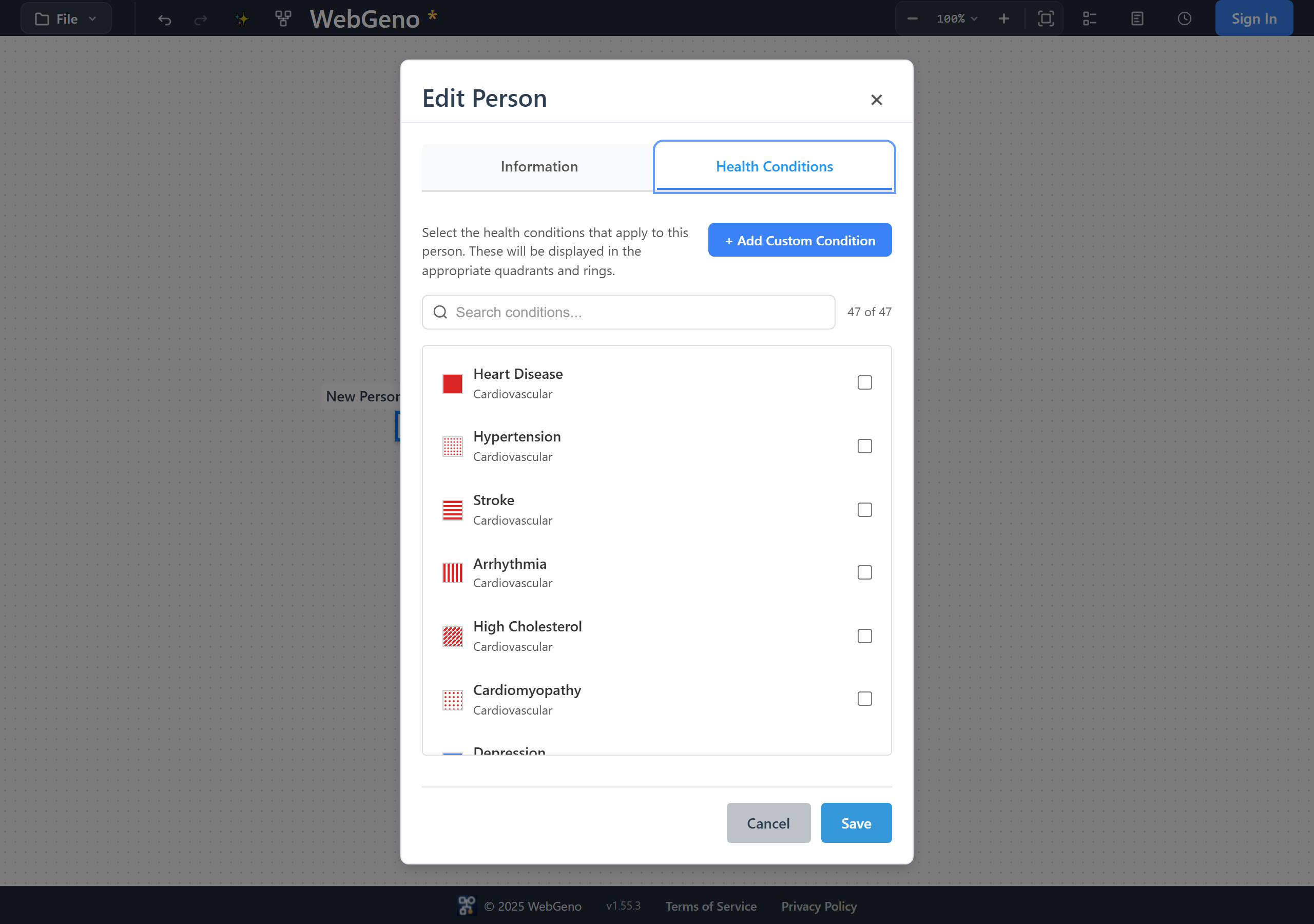
The + Add Custom Condition button sits at the top of the Health Conditions tab.
2Create the custom condition
Name it, pick where it appears on the person symbol, and choose how it looks.
Click + Add Custom Condition. The Create Health Condition dialog opens with five things to fill in:
- Condition Name (required): e.g. “PTSD”.
- Position: where the condition appears on the person symbol. This also sets the category it’s grouped under in the legend and in Settings (see the position guide below).
- Color: 8 options.
- Pattern: 21 fill patterns (solid, dots, stripes, crosshatch, and more). The Preview box updates live so you can check the combination is readable.
- Description (optional): free-text details, shown when managing conditions in Settings.
Click Create Condition to save it.
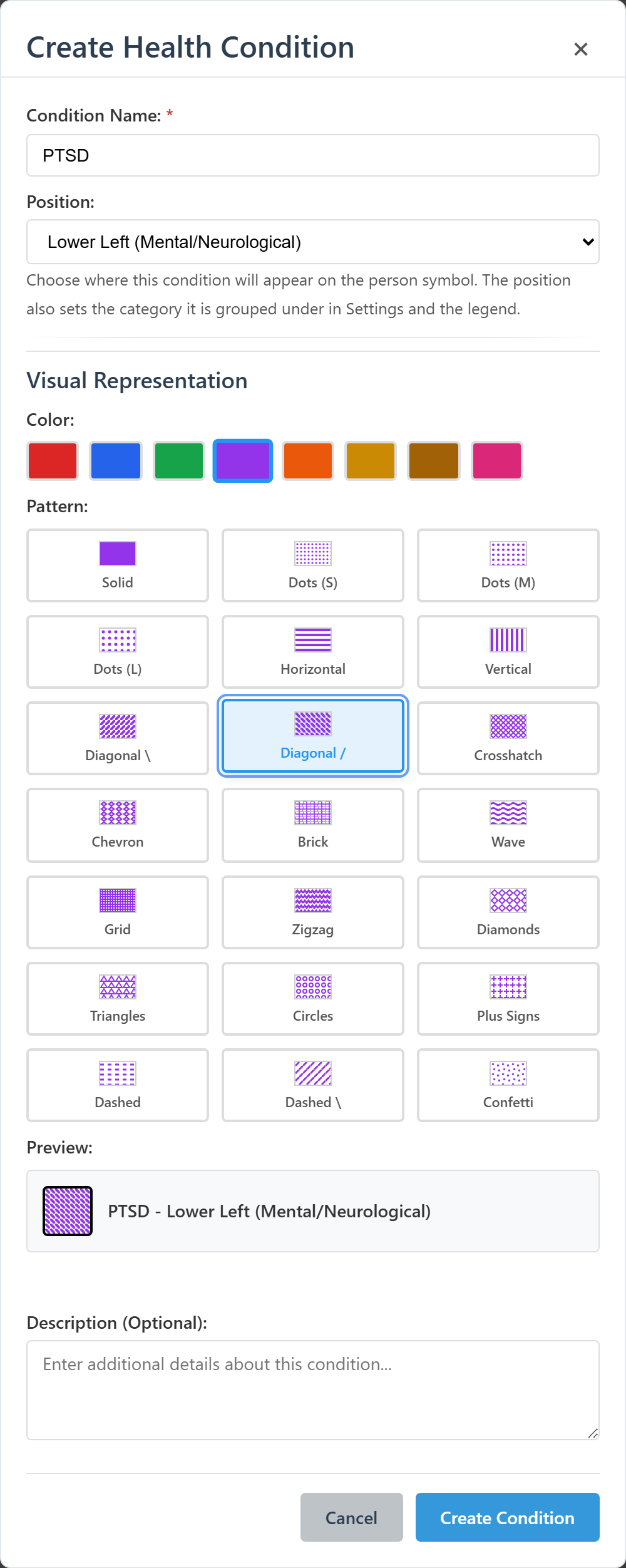
Creating “PTSD” as a custom condition: Lower Left position, purple diagonal pattern.
Top Left
Cardiovascular conditions (heart disease, hypertension, stroke…).
Top Right
Cancer diagnoses.
Lower Left
Mental health and neurological conditions. The natural home for diagnoses like PTSD, OCD, or eating disorders.
Lower Right
Metabolic and endocrine conditions (diabetes, thyroid disorders…).
Outer Ring
Everything else: respiratory, autoimmune, musculoskeletal, and any condition that doesn’t fit a quadrant.
3Assign it to the person
A new custom condition isn’t applied automatically; tick it like any other condition.
Back on the Health Conditions tab, your new condition now appears in the list alongside the built-in ones (search for it if the list is long). Click it to select it, then click Save.
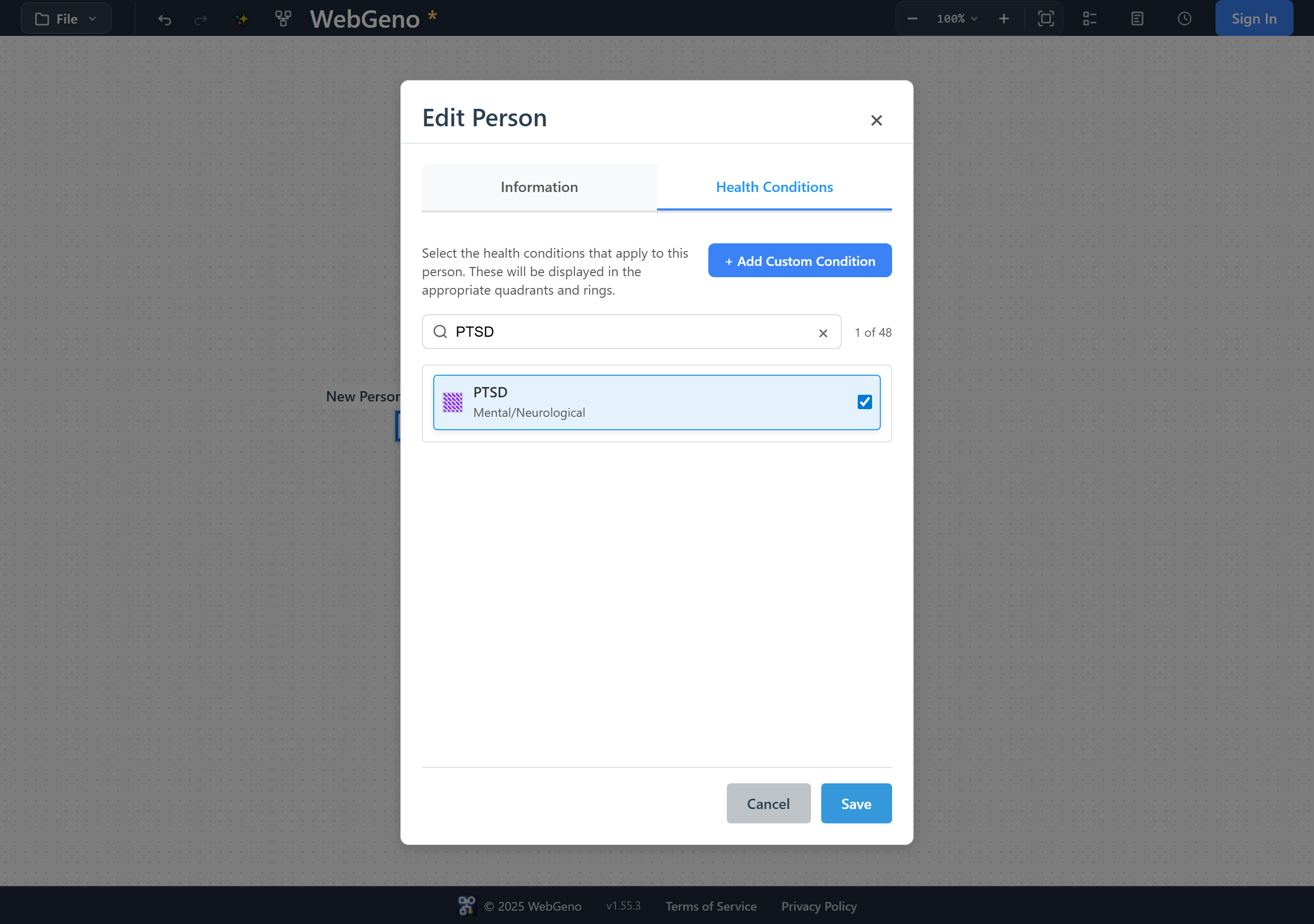
The new condition appears in the list; select it and save.
The condition is now drawn in its quadrant (or on the outer ring) of the person symbol, and the legend picks it up automatically, exactly as it does for built-in conditions.
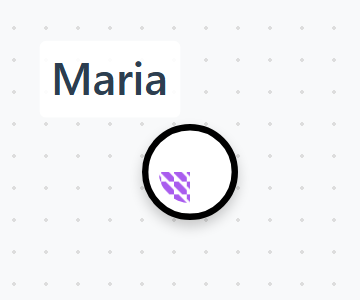
The custom condition rendered in the lower-left quadrant of the person symbol.
4Edit or delete it later
Custom conditions are managed from Settings.
Open Settings and go to the Health Conditions tab. Conditions are organized in folders by category; custom ones carry a Custom badge. From here you can:
- Edit (pencil icon): rename it or change its position, color, pattern, or description. Changes apply everywhere the condition is used.
- Delete (trash icon, custom conditions only): removes the condition from the genogram and from every person who has it. You’ll be asked to confirm first.
- + Create Custom Condition: the same create dialog is also available here, so you can prepare conditions before assigning them to anyone.
Frequently asked questions
Why isn’t my diagnosis in the built-in list?
The built-in list covers 64 common conditions, but no default list can be complete: there are hundreds of diagnoses across medical and mental health practice. Custom conditions are the universal way to represent anything we don’t ship by default, with the same visual treatment as built-in ones.
Will my custom condition be available in my other genograms?
No. Conditions (and everything else) are saved inside each genogram file, so a custom condition you create belongs to that genogram. If you need it in another genogram, create it there too; it only takes a few seconds.
Does the custom condition show up in the legend?
Yes. The legend is generated automatically from whatever is present in your genogram, so as soon as the condition is assigned to at least one person it appears in the legend under its category, just like a built-in condition.
What does the Position setting actually change?
Each person symbol is divided into four quadrants plus an outer ring, following the common medical-genogram convention of grouping conditions by system (cardiovascular top-left, cancer top-right, mental/neurological lower-left, metabolic/endocrine lower-right, everything else on the ring). The position you pick decides which of those five spots your condition fills, and which category folder it’s grouped under in Settings and the legend.
Is a custom condition included in exports and shares?
Yes, custom conditions are treated identically to built-in ones everywhere: PDF and image exports, the legend, and professional sharing. When you share with anonymization, the health-condition controls in the sharing dialog apply to custom conditions too.
Can I edit or delete the built-in conditions?
You can edit built-in conditions (for example to change a color or pattern), but only custom conditions can be deleted. If a built-in condition is in your way, simply don’t assign it; the legend only shows conditions that are actually in use.