Change Your Email Address
Switch the email address on your WebGeno account — for example, from a personal address to your university email so you can apply for free student verification, or to update your contact email if it changes for any other reason.
1Open Settings → Account
The email change lives on the Account tab inside Settings.
Sign in to the WebGeno web app, click your avatar in the top-right corner, and choose Account Settings. Make sure you’re on the Account tab. Just below your current email you’ll see a small blue link that reads Change email address — that’s where to click.
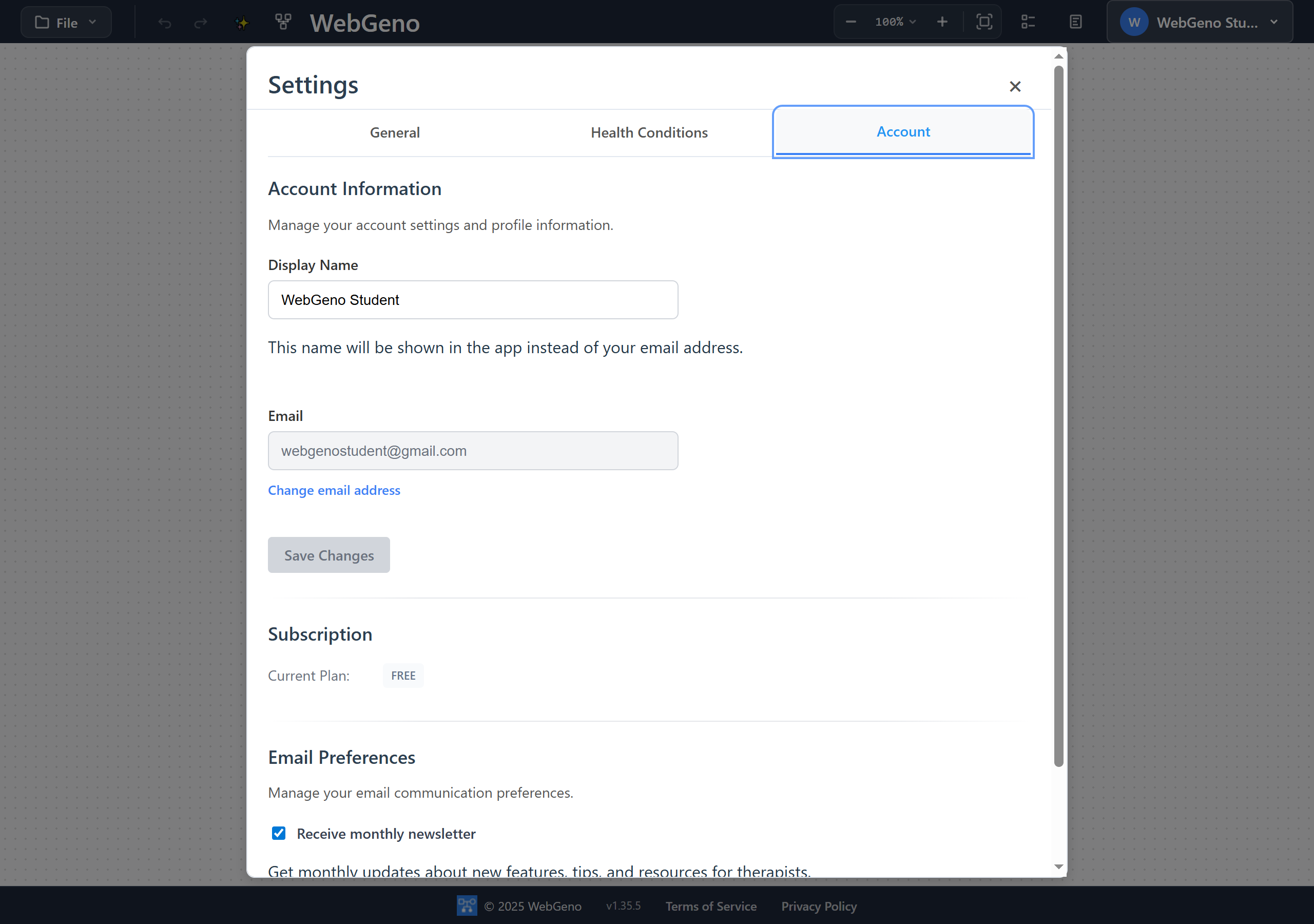
The Change email address link sits in blue, directly under the email field.
2Enter your new email address
Type the address carefully — this is where future sign-in and notification emails go.
Click Change email address. A new input field appears directly below your current email. Type the new address into it and click Update Email.
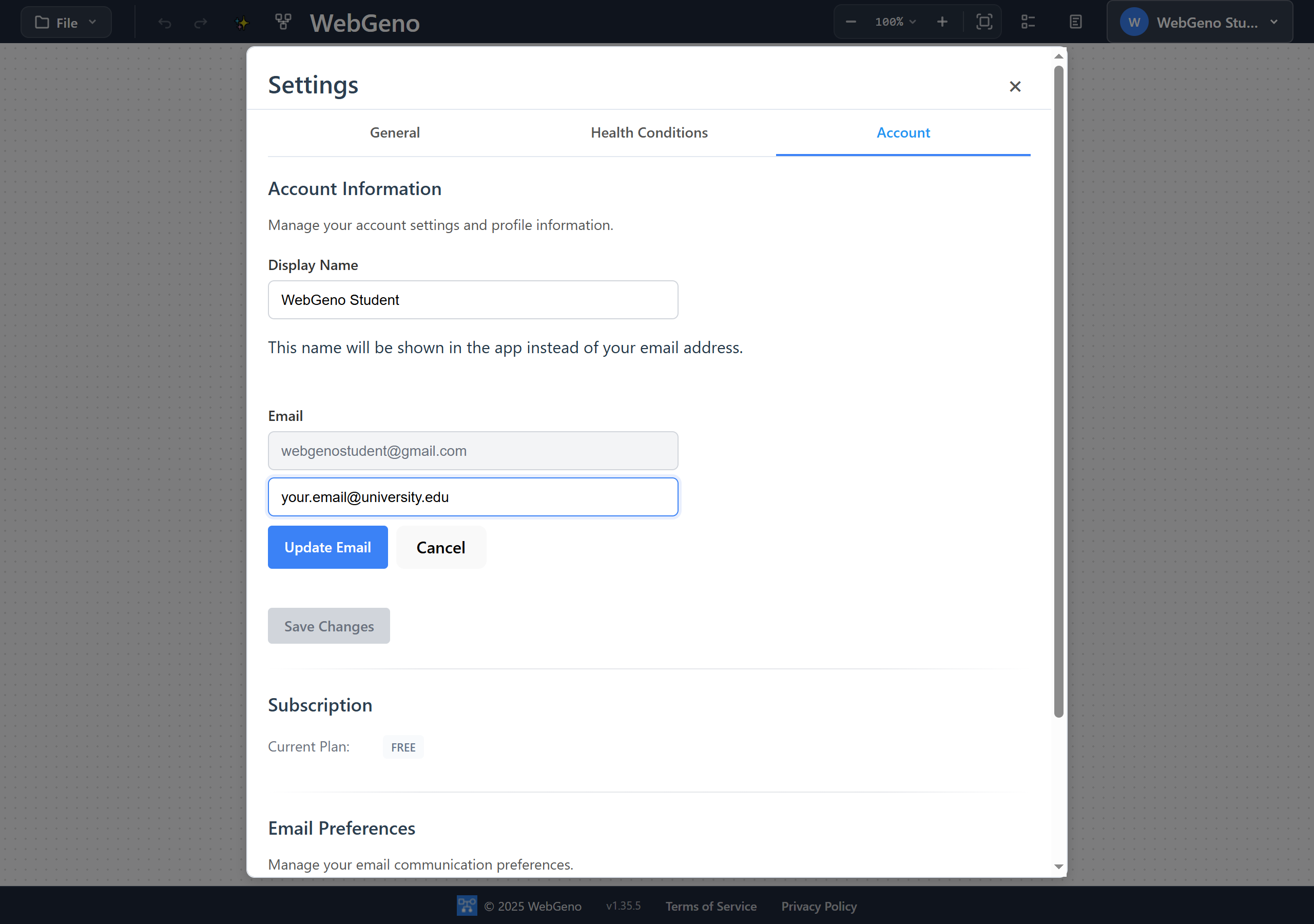
After clicking Change email address, type the new email and click Update Email.
3Confirm from both inboxes
This is the step most people miss — the change is incomplete until both links are clicked.
For security, WebGeno sends two confirmation emails — one to your old address and one to your new address. The change only completes when you click the link in both inboxes.
Old inbox
Confirms you authorized the change (and not someone with access to your new email).
New inbox
Confirms the new address is valid and you control it.
noreply@psychologysmarttools.com. Email-routing setups (forwarding, aliases,
catch-alls) sometimes delay delivery by a few minutes.
Frequently asked questions
I clicked one link but not the other — what state is my account in?
Your account email has not changed yet. You can still sign in with the original address and password. Find the second confirmation email (check the other inbox and spam folder) and click that link to finish the switch. If the link expired before you clicked it, just repeat the process from Step 1.
The confirmation email never arrived. What now?
First, check the spam/junk folder. Confirmation links are valid for 24 hours, so if it’s been longer than that, the link won’t work even if you find it. Repeat Step 1 to trigger a fresh pair of emails.
If neither email arrives within 10 minutes, email support@psychologysmarttools.com with your account details and we’ll help.
Can I change my email if I no longer have access to the old inbox?
Not through the self-service flow — the security model requires you to confirm from both inboxes. If you’ve genuinely lost access to your old email (account closed, school graduation, etc.), email support@psychologysmarttools.com from the new address with proof of identity. We can manually update it after verification.
Will I lose my saved genograms or settings?
No. Email change only affects how you sign in and where notifications are sent. All your saved genograms, encryption settings, subscription status (with one exception — see Step 2 if you’re a verified student), and account preferences carry over unchanged.
Can I use the same email for two WebGeno accounts?
No — each email address can only be associated with one account. If you try to change to an address that’s already in use, the save will fail with an error message.