
Getting Started
WebGeno runs directly in your browser with no installation required. Simply access the application and begin creating professional genograms immediately.
System Requirements
- Modern web browser (Chrome, Firefox, Safari, Edge)
- JavaScript enabled
- Recommended: 1920x1080 screen resolution or higher
- Internet connection for initial loading
First Launch
- Navigate to the web application
- The application loads with a blank canvas
- The legend panel appears by default
- Start by adding your first family member
Auto-Save: The application automatically saves your last opened genogram and restores it on your next visit.
Interface Overview
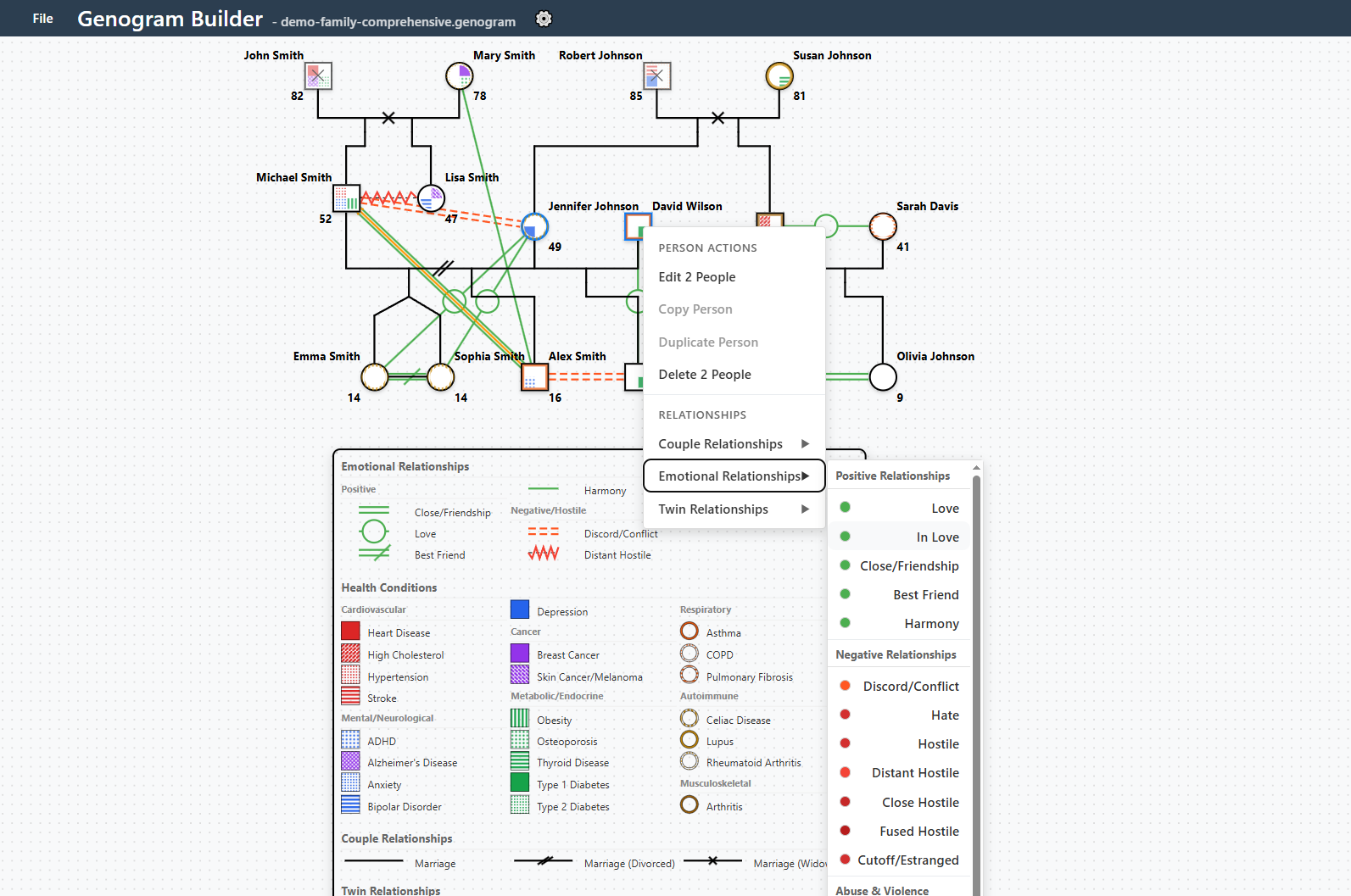
Main Components
- Interactive Canvas: Central workspace supporting zoom, pan, and drag operations
- File Menu: Top-left menu for save, load, export, and undo/redo operations
- Legend Panel: Dynamic, draggable panel showing active symbols
- Context Menus: Right-click menus for creating people and relationships
- Edit Dialogs: Double-click on people to edit properties and health conditions
Navigation Controls
- Mouse Wheel: Zoom in and out of the canvas
- Click + Drag: Pan across large genograms
- Selection: Click on elements to select and edit
- Multi-Selection: Ctrl/Cmd + Click for bulk operations
Health Conditions System
The application includes 64 predefined health conditions organized into 11 professional medical categories with visual differentiation. Every built-in condition carries an optional ICD-10 hint that appears in the condition picker and person tooltips.
Medical Quadrants (Main Categories)
Cardiovascular (Top-Left, Red)
- Heart Disease
- Hypertension
- Stroke
- Arrhythmia
- High Cholesterol
- Cardiomyopathy
Mental/Neurological (Bottom-Left, Blue/Purple)
- Depression
- Anxiety
- Bipolar Disorder
- Schizophrenia
- Autism Spectrum
- ADHD
- PTSD
- OCD
- Eating Disorder
- Epilepsy
- Migraine
- Alzheimer's Disease
- Dementia
- Parkinson's Disease
- Substance use disorders (alcohol, drugs, opioids, nicotine, cannabis, gambling)
Cancer (Top-Right, Purple)
- Breast Cancer
- Colorectal Cancer
- Prostate Cancer
- Lung Cancer
- Ovarian Cancer
- Skin Cancer/Melanoma
- Pancreatic Cancer
- Leukemia
Metabolic/Endocrine (Bottom-Right, Green)
- Type 1 Diabetes
- Type 2 Diabetes
- Thyroid Disease
- Obesity
- Kidney Disease
- Osteoporosis
- Liver Disease
Outer Ring Categories (Secondary)
Respiratory (Orange)
Asthma, COPD, Pulmonary Fibrosis
Autoimmune (Yellow)
Lupus, Rheumatoid Arthritis, Multiple Sclerosis, Celiac Disease
Musculoskeletal (Brown)
Arthritis, Fibromyalgia
Infectious (Teal)
HIV/AIDS, Hepatitis, Tuberculosis, COVID-19, STI
Congenital (Fuchsia)
Congenital Heart Defect, Cleft Lip/Palate, Spina Bifida, Down Syndrome
Developmental (Gray)
Intellectual Disability, Developmental Delay
Other (Pink)
Hemophilia, Sickle Cell Disease, Cystic Fibrosis
How Multiple Conditions Display
When a person has several conditions, all of them stay visible. By default, extra conditions automatically use quadrants that are free on that person's symbol (the flexible placement used in genetic pedigree charts), and the outer ring splits into up to four segments. In Settings > Health Conditions > Condition Display you can switch to strict category placement, or let a crowded quadrant split into up to four slices. The legend always identifies each condition by color and pattern, and the person tooltip lists everything.
Adding Health Conditions
- Double-click on a person to open the edit dialog
- Navigate to the "Health Conditions" tab
- Select conditions from the categorized list
- Conditions appear immediately on the genogram with proper positioning
Custom Health Conditions
The 64 built-in conditions don't cover every diagnosis. For anything missing (chronic pain, for example), click + Add Custom Condition on the Health Conditions tab to create your own, with its own name, category (any quadrant or the outer ring), color, pattern, and an optional ICD-10 code. Custom conditions behave exactly like built-in ones, legend included. See the step-by-step guide: Add a Custom Health Condition.
Condition Libraries (Professional)
Reuse a custom condition set across your whole caseload: in Settings > Health Conditions, Export Library saves your custom conditions as a small .wgcl file, and Import Library adds a library file's conditions to the current genogram. Share the file with colleagues so a practice or supervision group documents with one consistent notation. Imports skip duplicate names automatically.
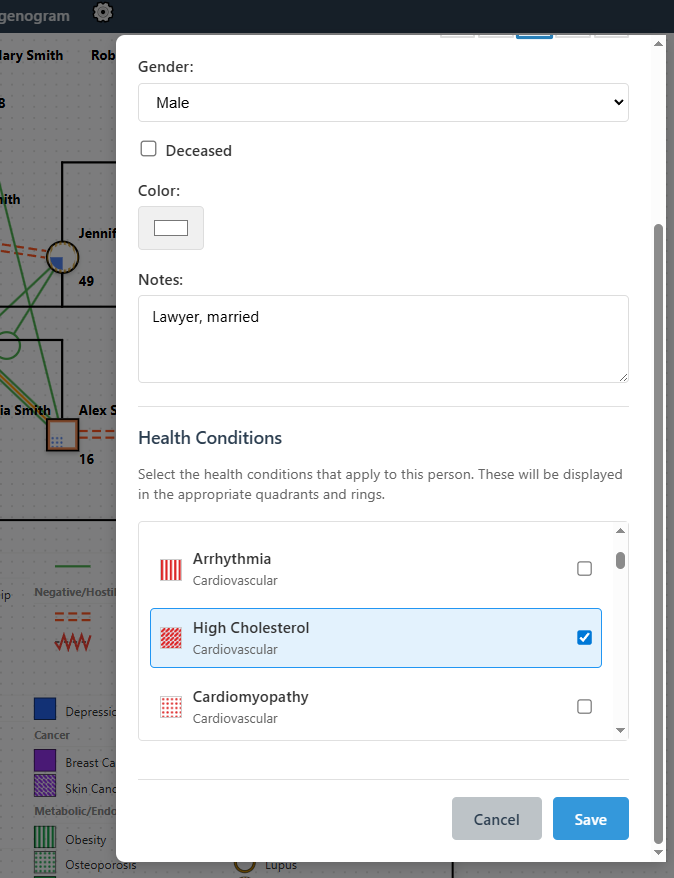
Health conditions selection interface with category organization
Dynamic Legend System
The legend panel automatically generates visual references for all active elements in your genogram.
Legend Features
- Automatic Generation: Shows only relationships and conditions present in your genogram
- Visual Accuracy: Legend symbols exactly match genogram rendering
- Interactive Positioning: Drag the legend to any location on the canvas
- Resizable: Adjust legend size using corner handles
- Persistent: Position and size saved with your genogram file
Legend Sections
- Couple Relationships: Marriage, divorce, separation symbols
- Emotional Relationships: Love, conflict, cutoff, and other dynamics
- Health Conditions: All active medical conditions with patterns
Managing the Legend
- The legend is visible by default when you have elements in your genogram
- Drag the legend panel by its header to reposition anywhere on the canvas
- Resize the legend using the corner handles
- Legend updates automatically as you add/remove elements
Seeing Who Has Each Condition
- Hover Highlight: Hover over a health condition in the legend to highlight every family member with that condition on the canvas; everyone else is dimmed so matches stand out in dense genograms
- Names Beside Conditions: Turn on "Names Beside Conditions" in Settings > Legend Settings to list the family members under each condition, directly in the legend
- In Exports: When exporting, use the "List family members beside each condition" option to include (or exclude) the name breakdown in the exported document, without changing your on-canvas setting
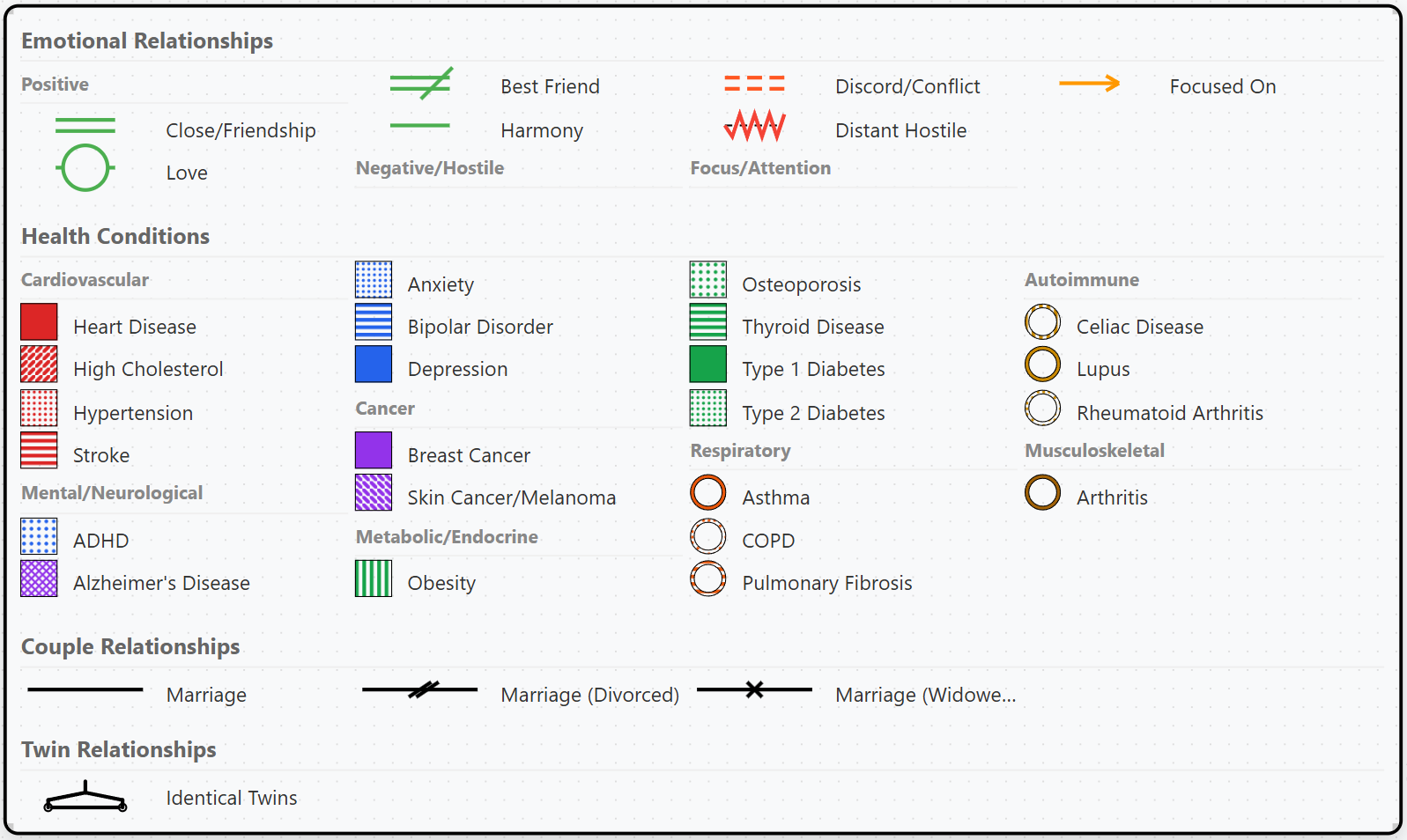
Legend panel showing relationship types and health condition patterns
Creating Family Members
Adding a Person
There are two ways to add a person to your genogram:
Method 1: Left-Click (Quick)
- Left-click on an empty area of the canvas
- A new person appears at the clicked location with default name and properties
- Double-click the person to edit details and properties
Method 2: Right-Click Context Menu
- Right-click on an empty area of the canvas
- Select "Add Person" from the context menu
- A new person appears at the clicked location with default name and properties
- Double-click the person to edit details and properties
Person Properties
Basic Information
- Name: Full name of the person
- Age: Current age or age at death
- Gender: Male (square) or Female (circle)
- Deceased: Adds X marking through symbol
- Notes: Additional information and context
Display Options
- Color: Customize symbol color
- Name Display: Position of name label
- Age Display: Position of age label
- Label Visibility: Show/hide different labels
Label Positioning
Labels can be positioned at four locations around each person:
- Top-Left
- Top-Right
- Bottom-Left
- Bottom-Right
- Hidden
Pro Tip: For complex genograms, consider hiding some labels to reduce visual clutter while maintaining essential information.
Advanced Relationship System
Couple Relationships
Basic Types
- Marriage: Solid line connection
- Engagement: Dashed line
- Love Affair: Dotted line
- Common-Law: Special notation
Modifiers
- Separation: Single slash through line
- Divorce: Double slash through line
- Widowed: Special marking
- Cohabitation: Dotted connection
Emotional Relationships
30 relationship types covering the complete set of interactional patterns from McGoldrick's 4th edition, grouped in the menu by relationship nature:
Positive (Green)
- Harmony
- Love / In Love
- Close/Friendship
- Best Friend
Conflict (Red)
- Discord / Hate
- Hostile (also distant, close, and fused variants)
- Cutoff
- Cutoff Repaired (green)
Abuse & Violence
- Physical Abuse (zigzag, filled arrowhead)
- Emotional Abuse (zigzag, open arrowhead)
- Sexual Abuse (enclosed zigzag, filled arrowhead)
- Violence (also distant and fused variants)
Control & Other
- Manipulative / Controlling / Neglect
- Focused On and Focused On Negatively
- Caretaker (double chevron at the person receiving care)
- Fused / Distant-Indifferent / Distrust / Fan-Admire
Arrows always point at the second person selected: the abused person, the person focused on, or the person receiving care.
Custom Relationship Types (Professional)
When the built-in list doesn't cover a dynamic you work with (attachment styles, for example), Professional users can define their own: select two people, right-click, choose Emotional Relationships, and use "+ New Custom Type" in the Custom section. Name it, pick a color, and build the line from parallel line count, line style, width, an optional zigzag or wave, arrowheads (one-way or both ends), and midpoint symbols, with a live preview. Custom types appear in the legend under your name for them, save with the genogram file, and can be edited or deleted from the same menu. The builder warns if a combination would look identical to a standard notation.
Twin Relationships
Special notation for twin relationships:
- Identical Twins: Connected with specific line notation
- Fraternal Twins: Different connection style
- Multiple Births: Supports triplets and higher orders
Creating Relationships
- Click the first person, then hold Ctrl (Cmd on a Mac) and click the second, so both appear highlighted
- Right-click one of the highlighted people to open the context menu
- Choose the relationship type from the "Couple Relationships" or "Emotional Relationships" submenu
- The relationship line appears automatically between the selected people
- Double-click on relationship lines to edit their properties
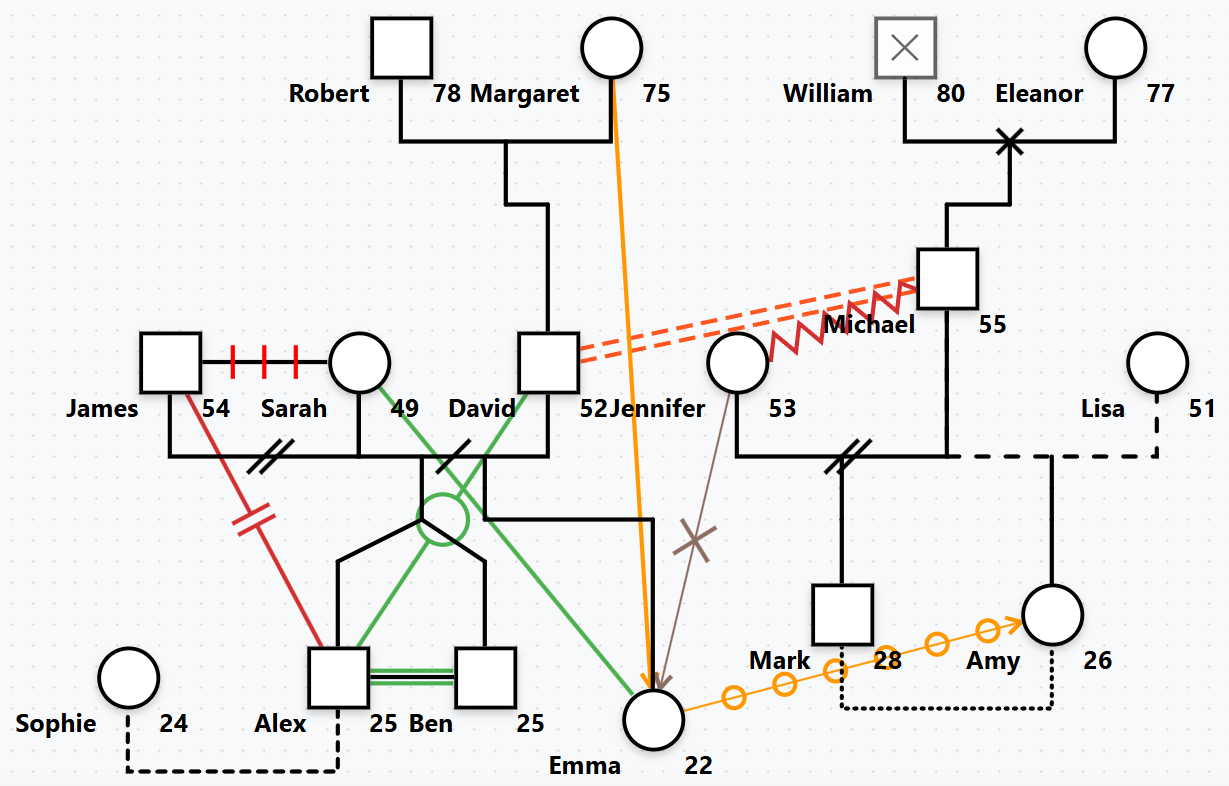
Examples of different relationship types and their visual representations
Bulk Editing Features
Efficiently edit multiple family members simultaneously with advanced change tracking.
Change Tracking System
- Visual Indicators: Modified fields are highlighted
- Selective Application: Only changed fields affect selected people
- Data Preservation: Existing data remains unchanged unless explicitly modified
- Undo Support: Bulk operations can be undone
Bulk Operations
Multi-Selection
- Ctrl/Cmd + Click to select multiple people
- Visual indicators show selected family members
- Works across different generations
Batch Property Updates
- Change colors for multiple people
- Update display settings simultaneously
- Apply common health conditions
Using Bulk Edit
- Select multiple people using Ctrl/Cmd + Click (they will appear highlighted)
- Right-click and choose "Bulk Edit" from the context menu
- The bulk edit dialog opens showing all selected people
- Modify desired fields (only modified fields will be applied to all selected people)
- Click "Apply" to execute bulk changes
Important: The change tracking system prevents accidental data loss by only applying fields you actively modify.
Building a Life Timeline
The Life Timeline turns the session notes you attach to a person into a chronological view of their significant life events — losses, transitions, diagnoses, and relationship changes. It is built on the same annotations you already use, so the picture comes together as you work.
Step-by-Step
- Attach session notes to a person using Annotations (right-click a person, or use the Annotations panel).
- Open the Life Timeline from the toolbar clock icon, the File menu, or by right-clicking the Identified Patient and choosing "Life timeline".
- Add events manually, or click "Add to timeline" on a note card to turn it into a dated event.
- Professional: click "Suggest events from notes" and accept or dismiss the AI's proposals.
- Toggle Compact / To-scale, zoom, drag to pan, and add a developmental overlay (Piaget / Erikson).
Dates & Views
- Flexible dates: events can use an approximate date (year, month, or day) or a span of time
- Compact view: groups events into an easy-to-read sequence
- To-scale view: positions events by their real dates, with clustering to keep busy periods readable
- Developmental overlays: anchor Piaget or Erikson stages against a birth event for clinical context
Privacy: Names are anonymized before any text reaches the AI, exactly like the AI Genogram Builder. Life events are private and are excluded from client shares.
File Management
Saving Genograms
- File Menu: Click "File" in the top-left corner to access save options
- Save Options: Save, Save As, or use keyboard shortcuts (Ctrl/Cmd+S)
- File Format: .genogram files with complete metadata and legend settings
- Auto-Restore: Your last opened genogram is automatically restored on next visit
Loading and Importing
- File Menu: Click "File" → "Open" to load a .genogram file
- GenoPro Import: Click "File" → "Import GenoPro" to load .gno files
- File Validation: Comprehensive error checking with detailed messages
- Health Condition Merging: Preserves all default conditions while adding custom ones
- Keyboard Shortcut: Ctrl/Cmd+O to open files quickly
Export Options Pro
- File Menu: Click "File" → "Export" to access export options
- PDF Export: Publication-quality PDF for clinical reports
- PNG Export: High-resolution images for presentations and documentation
- SVG Export: Scalable vector graphics for professional publications
- Include Legend: Option to include the legend panel in exported images
- Family Members per Condition: Option to list the family members beside each health condition in the exported legend
File Organization
- Descriptive Names: Use meaningful file names
- Folder Structure: Organize by family or client
- Backup Strategy: Regular exports for backup
- Version Control: Save incremental versions for complex cases
Best Practice: Export important genograms as PNG or PDF for long-term archival and sharing.
Troubleshooting
Common Issues
Application Loading Problems
- Refresh the browser page
- Clear browser cache and cookies
- Ensure JavaScript is enabled
- Try a different browser
Performance Issues
- Reduce zoom level for better performance
- Close other browser tabs
- Use a modern browser with hardware acceleration
- Restart the browser if memory issues occur
File Loading Errors
- Verify the file is a valid .genogram file
- Check file size (very large files may have issues)
- Ensure the file isn't corrupted
- Try loading a backup version
Legend or Display Issues
- Toggle legend visibility off and on
- Refresh the page to reset display
- Zoom to fit if elements appear off-screen
- Check if patterns are displaying correctly
Browser Compatibility
Recommended Browsers
- Chrome 90+
- Firefox 88+
- Safari 14+
- Edge 90+
Getting Additional Help
- Contact: support@psychologysmarttools.com
- Include browser version and error messages
- Describe steps to reproduce the issue
- Attach problem files if relevant